Tuesday, 24 March 2015

DigiLocker features and how to activate and share in DigiLocker


DigiLocker features and how to activate and share in DigiLocker


What is DigiLocker (Digital Locker System)?

DigiLocker is an online storage facility provided by the Government of India to store your important documents. You can upload documents like Voter Id card, PAN card, BPL card, Driving license, education certificates etc., These documents will be linked to your Aadhar number and can be treated as authorized documents. So, you may not need to carry physical documents while applying for jobs or government certificates or educational institutions etc.,

The following points will make you understand how the online digital storage system (DigiLocker) works:
  • It will enable digital empowerment of residents by providing us with Digital Locker on the cloud. As mentioned above, you can upload your important documents and keep them online. Digital Locker is linked to your Aadhaar number.
  • Minimize the use of physical documents. Uploading your certificates like those related to birth, marriage, income and caste certificates on the e-locker will ensure that there is no need to carry them in the physical format when they are needed for educational or job applications. For example – You are applying for a job in BSNL. While verifying your application, BSNL can access your Education related certificates on DigiLocker, based on your Aadhar number. (Here BSNL can be called as ‘Requester.’ Requester has to register for accessing repository of documents available on digital locker system).
  • You can also share e-documents online with any registered requester agency or department.
  • Ensure Authenticity of the e-documents and thereby eliminating usage of fake documents.
  • Secure access to Govt. issued documents through a web portal and mobile application for residents. For example – RTO (Regional Transport Office) can issue driving certificate and upload the document (in standard format) in the designated repository. The document (driver’s license in this case) will be pushed to the concerned resident’s (you) Digital Locker based on his/her Aadhaar number. In this case RTO can be called as an ‘Issuer.’ Another example can be, in future an Educational University can issue Graduation certificates and upload them to digital locker system. Students can then access their respective education certificates online (based on Aadhaar Id number).
  • Anytime and anywhere access to the documents.
  • Enable e-Signing of documents and make them available electronically. Digital signature can be done online. (I believe e-sign online service is not yet integrated)
  • Dedicated personal storage space (10MB). This may be increased to 1 GB in future.
  • Architecture to support a well-structured standard document format to support easy sharing of documents across departments and agencies.
  • Ensure privacy and authorized access to residents’ data.
  • You can also download eAadhar from the DigiLocker portal/website.
  • You can access List of issuers which have issued e-documents to resident (you) and list of requesters which have accessed resident’s (your) documents.

See also:

HTTP/2 features, support and release date


How to activate (or) access DigiLocker (Digital Locker system/facility)?
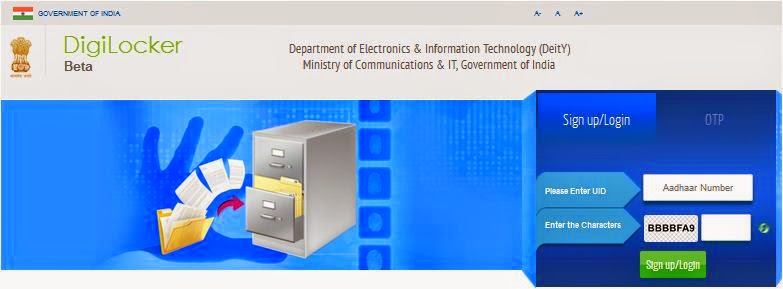
To Sign-up for the DigiLocker you need to have an Aadhaar number and a mobile number registered with Aadhaar.


  • Enter your Aadhar number (12 digit UID number).
  • Enter the characters displayed in the captcha code.
  • After clicking signup/login button, an OTP (One Time Password) will be sent by UIDAI to the mobile number and email-id registered with your Aadhaar. (OTP is valid for 30 minutes) (I have logged into the portal and it is really quick and simple)

  • Enter the OTP and click on “Validate OTP” button. Once the OTP is validated the signup and login is complete.
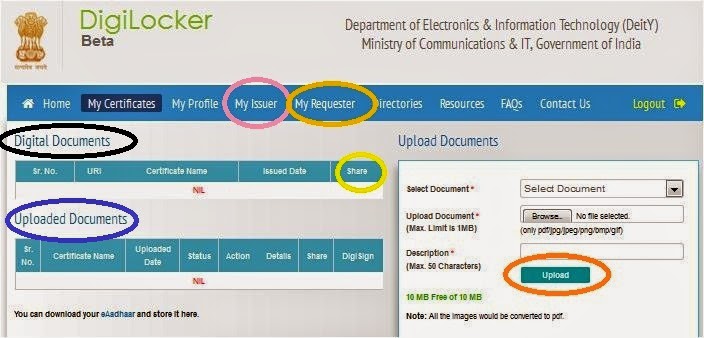
  • Below screenprint shows you the various menu options that are available on the home page.  (Click on the image to enlarge it)

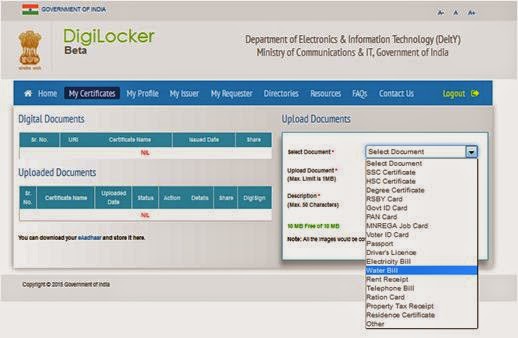
·         You can upload various documents like SSC certificate, PAN card, Voter Id etc., On successful upload, the document will be listed under “Uploaded Documents” subsection. 
  • You can find ‘Share’ option Under the menu ‘My certificates.’
  • My profile’ menu section displays the complete profile of the resident (Name, Date of Birth, Gender,Residential Address, email, mobile number) as available in the UIDAI database.
  • My Issuer – This section displays the Issuer name and the number of documents issued to the resident by the issuer.
  • My Requester – This section displays the Requester name and the number of documents requested from the resident by the requester.
  • Directories – This section displays the complete list of registered Issuers and Requesters along with their URL.

See also:

Tips to increase WiFi signal strength

   
     How can I share the e-documents in my digital locker?
       For sharing your e-document (mentioned as URI under “Digital Documents” subsection or under “Uploaded Documents” subsection) you need to click on “Share” link provided against the document you would like to share. A dialog box will pop up. Please enter the email address of the recipient in the dialog box and click “Share” button. The document will be shared with the recipient via email. The recipient will receive an email from “no-reply@digitallocker.gov.in”. The subject line of the email will mention the document name and document type. The email body will have the URI-Uniform Resource Indicator link of the document and the sender name and Aadhaar number. The recipient can access the document using the URI link provided in the email.
I believe this is a good initiative by our government. The challenge is to implement and execute this new-age idea across different agencies/govt departments/institutions. Do you think Digital Locker system is a good initiative? Will you opt for DigiLocker facility? Try DigiLocker now. Do share your views.
Read More »

Top 10 windows 10 features, release date and requirement for mobile and pc

Windows 10 features, release date and requirements


Microsoft Corp is making its biggest push into the heavily pirated Chinese consumer computing market this summer by offering free upgrades to Windows 10 to all Windows users, regardless of whether they are running genuine copies of the software.

The move is an unprecedented attempt by Microsoft to get legitimate versions of its software onto machines of the hundreds of millions of Windows users in China. Recent studies show that three-quarters of all PC software is not properly licensed there.

Terry Myerson, who runs Microsoft's operating systems unit, announced the plan at the WinHEC technology conference in Shenzhen, China.

"We are upgrading all qualified PCs, genuine and non-genuine, to Windows 10," he said in a telephone interview with Reuters. The plan is to "re-engage" with the hundreds of millions of users of Windows in China, he said, without elaboration.


What is Windows 10?

Windows 10 is the next version of Windows. Microsoft first unveiled Windows 10 on 30 September 2014 during an event in San Francisco and has elaborated more in events at the beginning of 2015 and more recently.
Microsoft reportedly wanted to abandon the Windows 8 brand with Windows 10, simply because Windows 8 was not well-received by critics and users. Microsoft also said it didn't use Windows 9 because it "wouldn't be right".
The company also didn't want to go with Windows One, because it already used the "One" brand for other products.
The new OS will undo many messy bits that both critics and users didn't like about Windows 8, while also bringing back some Windows 7 elements and keeping touch alive for two-in-one devices. Microsoft also wants Windows 10 to be a one-application platform.

When will Windows 10 release and for how much?

Microsoft has confirmed that Windows 10 will be offered as a free download to customers using Windows 8.1, Windows 7 and Windows Phone 8.1.
Announced during its Windows 10 media briefing, the free upgrade will be available to all of those customers - 200 million using Windows 8.1 alone - for an entire year after its official release date.
It will be coming in the "summer" for consumers, it has been confirmed. Many have speculated that it will be available from June, therefore. A preview version of the software is already available for those foolhardy enough to install it.
The revelation that Windows 10 will also be available as a free upgrade for Windows Phone users means that the company has confirmed it is killing off the separate Windows Phone operating system.

See also:

HTTP/2 features, support and release date


Features


1. Cortana
CORTANA WILL BE A HUGE PART OF WINDOWS 10

After getting started on smartphones, Microsoft’s personal assistant is coming to the desktop. Cortana will bring her powerful search and reminder capabilities to Windows 10. We got a rough, unofficial demonstration of what this would look like back inSeptember, but today the company showed off a much more polished vision. Microsoft says "you’ll see Cortana as never before" in Windows 10, as it will now serve as the primary search tool for a massive audience of Windows users. But it gets way more personal than that; Joe Belfiore essentially carried on a full conversation with Cortana on stage. Cortana gave a Super Bowl prediction — which seemed just a bit biased in favor of Seattle's own Seahawks. Unlike the

sometimes robotic responses you'll hear from Siri and Google Now, Cortana speaks with a
natural, conversational flow.

2.XBOX
Gaming is getting a massive push in Windows 10. A new Xbox app enables Game DVR for sharing clips of most PC games with your friends — and they're sent across Xbox Live, so Xbox One owners can watch as well. You'll see a universal friends list with Xbox gamers on console and Windows, full messaging support, and an activity feed that shows you what everyone's doing.
But the plans get even more ambitious than that. Cross-play between Windows 10 and Xbox One gamers will become a reality. And if PC games aren't your thing, you'll be able to seamlessly stream Xbox One games to Windows 10 PCs and tablets on your Wi-Fi network "later this year." Microsoft showed off Forza Horizon 2 running on a Surface Pro 3.

3.Project Spartan

Microsoft has indeed been working hard on a new web browser, though we didn't get an official name today. It's still being referred to as Project Spartan, and Belfiore's demonstration lined up perfectly with The Verge's earlier report. He showcased the browser's broad support for touch and annotation. Highlighting something on a page is as simple as circling your finger around it — no Surface pen or stylus required. Using a mouse also works fine; you can click on any section of a website to type out a comment for sharing with co-workers or friends.A new Reading Mode puts articles in a layout that's easier on your eyes, and Microsoft is also introducing a Reading List that syncs content across phones, tablets, and PCs for later; Apple has had similar functionality in iOS and OS X for some time now. But what Apple doesn't have in its browser is Cortana. Microsoft's personal assistant is everywhere in Project Spartan.

4.New universal apps for PC

Microsoft has been working on all-new, universal apps for Windows 10. First is Outlook, and the company has built in Word's engine, which provides comprehensive styling and extra formatting capabilities no matter what device you're checking email from. On PC, it looks similar, but more polished than what's there today. Desktop users can also personalize Outlook with a background image of their choice.

Microsoft's OneDrive cloud storage has gotten much smarter about displaying a "simple view of all your photos," Belfiore said. Like Google+, the new Photos app will automatically enhance and touch up photos, removing blemishes like red eye and making sure you end up with the right exposure. Windows 10 users can expect new apps for People, Maps, and Music, as well.

5.Design and interface improvements
Microsoft is paying attention to the details in Windows 10. During today's demonstrations, refreshed and more modern icons could be seen at every turn. The chrome around apps has been flattened, and everything feels more cohesive and consistent compared to the early Windows 10 software that beta testers have been using over the last few months.

6.New Task View
Now the Windows 8 task switcher has been unceremoniously dumped, there's a new Task View in Windows 10, too, so users can switch between virtual desktops.That's because Microsoft now recognises that novice users use the taskbar rather than switching in other, cleverer, ways such as Alt+Tab (which also now switches between desktops).

7.Snap Windows
A new Snap Assist feature also helps users work out which way is best to snap apps to. You can snap windows into new screens and tile Windows - just as you've been able to since Windows 2.0 or maybe 3.0.

8.The Command Prompt enters the 21st Century
Another quite amazing feature for those of us that use it is that the command prompt is now getting keyboard shortcuts! So you will be able to paste in your commands! Hardly groundbreaking, but actually pretty exciting.

9.Continum
Continum is an on-the-fly mode for 2 in 1 devices that can automatically change mode if it detects there is suddenly no keyboard attached. So, for example, a back button appears to help you navigate the Desktop with touch if the keyboard is removed. We reckon the charms will also disappear in non-touch mode, although we've heard conflicting news about that.

10.Windows 10 has lots for Business and Enterprise

Microsoft says it hopes to appeal to business with this release of Windows, more so than Windows 8 ever did. Belfiore said they were "starting the dialogue with businesses today".

To be honest, it needs to - Windows XP is now ancient and unsupported, while precious other businesses want to make the leap away from Windows 7. But part of the reason why Microsoft is demonstrating the OS without all the consumer features is to show enterprises what the OS is capable of at this stage.

This version of Windows will have plenty of other features for enterprise, including a customised store and protection for corporate data. Mobile Device Management will be able to be used for all devices.

See also:

DigiLocker features and how to activate and how to share the documents in Digilocker


Hardware requirements

The presentation “Minimum System HW Requirements & Compatibility for Windows Platforms” details what is needed to run Windows 10 on both desktop and mobile. It doesn’t disclose everything you need to know, but screen size, memory, storage, graphics, and firmware are all mentioned.
Here are the desktop requirements:

This is clearly aimed at computer makers. It’s thus worth adding that the Windows 10 technical preview has these requirements:
  • Processor: 1 gigahertz (GHz) or faster
  • RAM: 1 gigabyte (GB) (32-bit) or 2 GB (64-bit)
  • Free hard disk space: 16 GB
  • Graphics card: Microsoft DirectX 9 graphics device with WDDM driver
  • A Microsoft account and Internet access
Here are the mobile requirements:

Everything seems to be very similar to what we’ve seen in Windows Phone releases. Apparently a phone with a screen less than 3 inches just won’t cut it.

The optional components for both desktop and mobile are also worth highlighting (phones have stricter guidelines than PCs):
By and large, Microsoft is keeping the same requirements as previous Windows releases. The phone details are arguably more interesting given that the preview is currently limited to just six devices.
Read More »

Monday, 23 March 2015

Top android hd games list


Top android hd games list


Gaming on Android has been rapidly improving over the last couple of years. Gone are the days where the best of the best are simple puzzle games. Now, there are near-console quality games available on Android that provide more than just a moment of distraction. Those puzzle games have also improved to keep up with the latest trends and graphics. So below are some of the best Android games.


See also:

Top 10 windows 10 features, release date and requirement for mobile and pc


Best android games list

  1. Asphalt 8: Airborne
  2. Shadow Fight 2
  3. Modern Combat 5 : Blackout
  4. Call of Duty: Strike Team
  5. Clash of Clans
  6. Zombie Highway 2
  7. Dead Trigger 2
  8. Fifa 14
  9. Nova 3
  10. Grand theft Auto: SanAndreas
  11. Badland
  12. Blood and Glory
  13. Angry birds
  14. Subway surfer
  15. Frontline commando 2
  16. Candy Crush Saga
  17. Temple Run 2
Hey guys i have just listed out some of the games in the above list.If you know more games then comment it below.

See also:

Tips to increase WiFi signal strength

Read More »

How to root android mobile or tablet


How to root android mobile or tablet


Root features
-   Overclocking your phone processor this will ultimately speed up your phone
-   Install a custom ROM.
-   Ad blocker
-   Uninstall pre-installed applications
-   Move application to SD card or MMC card by (Link2SD, App2SD)
-   Good Battery performance

To root any android mobile we can use KingRoot app. King Root is an ideal tool to root your Android phone. Download King Root .apk file from this link and install. 

See also:

Top android hd games list


Steps

1.Run KingRoot application.

2.Disable internet and tap the green circle.

3.Tap the blue button

4.Restart phone.

After restart to check whether you had complete root just check it through root checker.

You can also unroot your android mobile or tablet whenever you want by 

kinguser >  settings > remove root permission > clear data > restart phone


Disclaimer: We are not responsible for any damage cause to your phone.Rooting voids your phone’s warranty
Read More »

How to speed up android mobile

How to speed up android mobile


1.Update your smartphone firmware. The firmwares fix some lags, bugs, and other issues that you may not be aware of. Such issues crop up with reasonable frequency, so updating regularly will ensure the optimum performance for your phone.

2.Uninstall Apps.  Don’t install apps you hardly use. Keep only the apps that you need and if you have got an app that isn’t really useful, you can uninstall or disable it.

See also:How to create a strong password tips

3.Know your device.It is important that you learn about the capabilities and drawbacks of your phone. Don’t overburden your phone with resource-hungry apps which would otherwise degrade your phone’s performance at your expense.

4.Disable. Disable unnecessary Apps.It is important that you learn about the capabilities and drawbacks of your phone. Don’t overburden your phone with resource-hungry apps which would otherwise degrade your phone’s performance at your expense.

5. Update Apps

You should regularly update your phone’s installed apps from Google Play. Try to get updates your apps when they are available in Google Play. Developers fix bugs and add features in new released versions of apps. Updated apps perform better and faster, and will less likely crash your phone.

See also:

Top android hd games list

6. Use High-Speed Memory Card

The memory card is the storage space of your phone. Phones with low internal memory can get a boost from high-capacity memory cards for maximum storage space. But it adds not only capacity but also speed to the mix. You can get between 2GB to 32GB worth of storage space to support high speed read/write operations. Always go for memory cards of Class 6 or Class 10 for your Android phone if you seek performance for your phone.

7. Keep Fewer Widgets

Widgets are not apps, which only run once you choose to activate them. No, widgets are always running in the background; they are active all the time. While some Android users use it to keep track of the weather, and their important dates, others use widgets like ‘Extended controls’ for quick access for essential configurations such as switching Wi-Fi, Bluetooth or their GPS on or off.

8. Avoid Live Wallpapers

You must be loving Android’s live wallpaper feature. Phones (from different manufacturers) come with different live wallpapers but you should know that live wallpapers that are badly made will need more CPU cycles to run, thus draining the battery faster. Everytime you activate the home screen, you run not only your apps but also your live wallpaper.

9. Stop Syncing

Sync is a very good feature which synchronizes your data with Google servers. Keeping sync on, you can get notifications whenever new mail comes in or when you get new notifications or updates for apps.

10. Turn Off Animations

What animations? Well, if you haven’t noticed, your phone screen actually fades out and in as you switch from one task to the other. To see this in action Go to Settings > Developer Options > Window Animation Scale > Animation scale 10x. Then choose Window Animation Scale again to see the fade in effect in ‘slow-mo’.
11.Reset your android phone
Resetting erases everything and brings your phone back to its original, "as new" condition. This is a temporary option, because as you use phone again, it will lag as it used to do.
12.Search the playstore for useful application.
  • For older phones, an auto task killer: Kills chosen applications every 'n' seconds or minutes. This frees up some RAM memory, thus the phone will run faster.
  • A good antivirus application: Scans your phone for any possible viruses and malwares. These usually slow down your phone.
13.Restart the phone.  
This is temporary option but it works.
14.Root the phone.Rooting gives you additional options to do with your phone. Although rooting is a risky solution, it is not as risky as it used to be. Unsuccessful rooting process might brick your phone (i.e., it will malfunction). In addition, a successful root will void your warranty. However, you can always unroot the phone (and you will restore your warranty, as the manufacturers cannot tell if you rooted your phone before or not). 
See aslo:

How to root android mobile or tablet


To root the android mobile or tablet follow the link techasknew or techscrack
Read More »